 By Rakesh Joshi
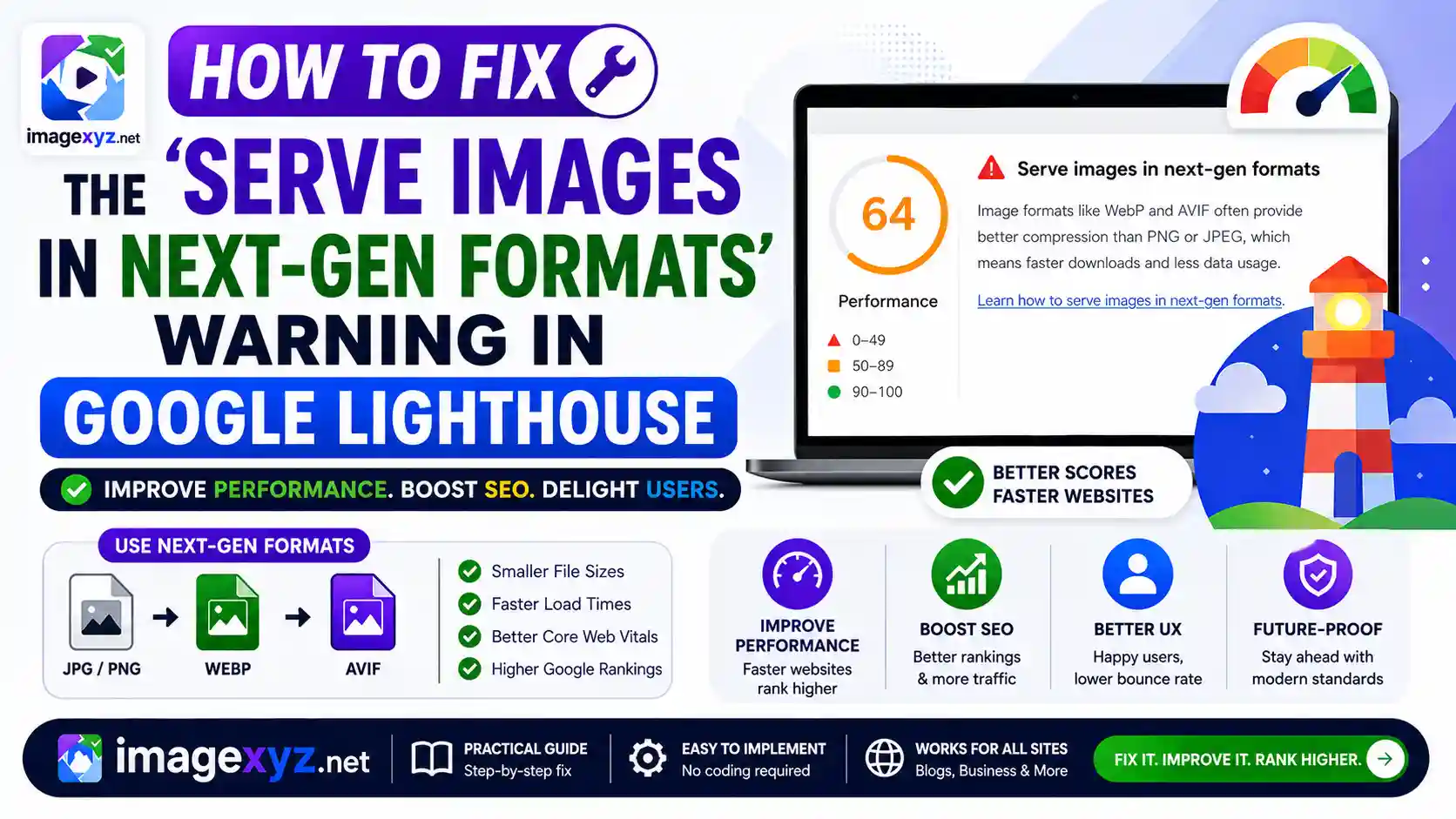
If you have ever audited your website using Chrome DevTools or PageSpeed Insights, you have likely encountered a high-priority warning that directly damages your performance scores: the "Serve Images in Next-Gen Formats" Warning in Google Lighthouse. In an era where web load speed translates directly into conversion rates, user satisfaction, and search engine positions, this diagnostic message is an alarm that you cannot afford to ignore. Legacy formats like JPEG, PNG, and GIF have served their purpose, but their high file sizes and inefficient encoding algorithms are now a bottleneck for modern web architectures. This guide provides a detailed technical blueprint showing developers and webmasters exactly how to resolve this diagnostic warning, improve Core Web Vitals, and scale web performance using advanced compression formats.
For privacy-focused creators and businesses, optimizing images often poses a security dilemma: traditional cloud utilities require you to upload your sensitive assets to remote servers. This consumes bandwidth and compromises data security. ImageXyz solves this issue by running all conversion and compression algorithms 100% locally in your browser memory. Whether you are transforming formats using Image to WebP, converting high-resolution PNGs via PNG to WebP, translating next-gen raw formats using JPEG to AVIF, or converting images generally using the Local Image Converter, you can ensure peak speed and absolute privacy.
Pass Your Lighthouse Speed Audits Today
Eliminate load-time lag by converting your existing website images to WebP or AVIF locally. Use our high-speed, client-side Online Image Converter to format and compress your assets instantly inside browser memory, with zero files uploaded to external servers.
Why Next-Gen Image Formats Matter: The Science of WebP and AVIF
To understand why Google Lighthouse flags legacy extensions, it is essential to look at the mathematical differences in their compression profiles. JPEGs and PNGs rely on older algorithms that require more bytes to store visual details. In contrast, next-gen formats utilize state-of-the-art compression routines adapted from modern video codecs.
1. WebP: The Standard for Modern Web Compatibility
Developed by Google and launched in 2010, WebP utilizes intra-frame coding technology derived from the VP8 video codec. It uses spatial predictive coding, which calculates visual parameters based on adjacent pixel blocks to store only the mathematical difference between blocks instead of redundant color values.
WebP supports lossy compression (ideal for photographs) and lossless compression (ideal for graphics and screenshots) in a single wrapper. Additionally, WebP provides alpha channel transparency and animation. The performance results are stark: WebPs are typically 25% to 35% smaller than JPEGs and up to 26% smaller than PNGs at identical visual quality. With native support across 99% of browsers, WebP is the default format for modern site optimization.
2. AVIF: The Apex of Compression Efficiency
Released in 2019 by the Alliance for Open Media, AVIF is an open-source, royalty-free container that encapsulates AV1 video codec intra-frames inside an ISO-compliant HEIF container.
AVIF utilizes highly complex, variable-sized partitioning blocks (ranging from 4x4 up to 128x128 pixels), advanced directional prediction filters, and sophisticated chroma subsampling strategies. This allows AVIF to prevent visual artifacts and gradient banding even at extremely low bitrates. It also natively supports 10-bit and 12-bit color depths, HDR visual ranges, and alpha transparency.
In real-world applications, AVIF files are 50% smaller than legacy JPEGs and 20% to 30% smaller than equivalent WebPs. While compression requires more CPU processing cycles, the bandwidth savings make it the ultimate format for maximizing page load speeds.
How Google Lighthouse Triggers the Next-Gen Format Warning
The Google Lighthouse performance engine runs audits against your page’s Document Object Model (DOM) during loading, inspecting all network resources classified as images. The audit triggers when the following conditions are met:
- The image is served in a legacy format, specifically JPEG, PNG, or GIF.
- The estimated file size reduction achieved by converting the image to WebP is at least 8 KB.
- Lighthouse simulates a WebP compression ratio of 75% visual quality to estimate potential byte savings. If the savings exceed the threshold, the image is added to the diagnostic list, and the audit calculates the potential load delay based on current network profiles (e.g. 4G throttling).
Step-by-Step Platform Guides to Resolve the Warning
Fixing the warning depends on the platform and build systems used by your application. Below are standard technical setups for resolving the warning across diverse environments.
Static HTML & CSS: Implement Progressive Picture Elements
For traditional static web architectures, you should not simply replace JPEGs with WebP/AVIF if you want to support legacy browsers. Instead, write an HTML5 <picture> element that allows modern browsers to download AVIF or WebP, falling back to JPEG only if next-gen formats are unsupported:
<picture>
  <source srcset="/Images/hero-banner.avif" type="image/avif">
  <source srcset="/Images/hero-banner.webp" type="image/webp">
  <img src="/Images/hero-banner.jpg" alt="SEO Optimized Banner" width="1200" height="675" loading="eager" fetchpriority="high">
</picture>Modern JavaScript Frameworks: Next.js Optimization
In Next.js, manually writing picture tags can be tedious. Instead, leverage the built-in next/image component. Next.js automatically checks user browser compatibility via HTTP headers and dynamically transcodes and stores optimized WebP/AVIF outputs:
import Image from 'next/image';

export default function Hero() {
  return (
    <Image
      src="/Images/banner.jpg"
      alt="Lighthouse Optimized Banner"
      width={1200}
      height={675}
      priority
    />
  );
}next.config.js configuration file:
module.exports = {
  images: {
    formats: ['image/avif', 'image/webp'],
  },
}WordPress Development: Dynamic Plugins & CDN Delivery
If you manage a WordPress site, you can resolve the Lighthouse next-gen warning without manually editing code templates. Install optimization plugins like Converter for Media, WebP Express, or EWWW Image Optimizer.
These plugins read your media library uploads, generate parallel WebP versions in your `wp-content` directories, and dynamically rewrite image request paths. Alternatively, you can connect your site to a CDN like Cloudflare or Jetpack, which automatically manages image compression at their edge server nodes.
Configuring Server-Level Redirection and Content Negotiation
If you cannot rewrite your HTML templates but still want to resolve Lighthouse warnings, you can implement server-level content negotiation. This approach checks the browser’s HTTP Accept request header (which specifies if the browser supports next-gen extensions) and dynamically redirects requests to matching `.webp` or `.avif` files, keeping the exact same image URL in the source code.
1. Nginx Configuration Setup
Add the following configuration block inside your Nginx server settings to determine the best format dynamically based on header indicators:
map $http_accept $img_suffix {
    default "";
    "~*webp" ".webp";
    "~*avif" ".avif";
}

server {
    # ... standard configurations ...

    location ~* ^/Images/.+\.(png|jpe?g)$ {
        add_header Vary Accept;
        try_files $uri$img_suffix $uri =404;
    }
}2. Apache Web Server (.htaccess) Rules
For Apache servers, configure your `.htaccess` rules to automatically check browser support and rewrite JPEG/PNG paths to WebP files:
<IfModule mod_rewrite.c>
  RewriteEngine On

  # Check if browser supports WebP
  RewriteCond %{HTTP_ACCEPT} image/webp

  # Check if WebP version exists on disk
  RewriteCond %{DOCUMENT_ROOT}/$1.webp -f

  # Rewrite request to WebP
  RewriteRule (.+)\.(jpe?g|png)$ $1.webp [T=image/webp,E=accept:1]
</IfModule>

<IfModule mod_headers.c>
  Header append Vary Accept env=REDIRECT_accept
</IfModule>
Core Web Vitals Impact: How Next-Gen Formats Boost Search Rankings
Resolving the Google Lighthouse warning directly improves key Core Web Vitals performance indicators that Google utilizes as active search ranking signals:
- Largest Contentful Paint (LCP): On most pages, the LCP element is a large header graphic. Converting a 1.2MB JPEG banner into a 150KB WebP or a 95KB AVIF accelerates visual rendering by avoiding network queue limits. This directly lowers your LCP score, helping you meet the required 2.5-second threshold.
- Interaction to Next Paint (INP): Large, slow image transfers block the browser's thread, preventing it from parsing scripts and stylesheets. Serving smaller images prevents network congestion, keeping your site highly responsive.
- Cumulative Layout Shift (CLS): When swapping from legacy elements to next-gen formats, developers sometimes omit dimension details. Always include explicit
widthandheightattributes on your images to prevent visual shifting.
Avoiding Common Quality and Layout Pitfalls
When migrating your site to WebP or AVIF, watch out for these common implementation mistakes:
- Omitting the Vary Accept Header: If you utilize server-level negotiation without appending the
Vary: Acceptheader, reverse proxies and CDNs might cache a WebP file and serve it to an older browser that only supports JPEGs. This breaks the page layout. Always include the header to inform cache servers to segment outputs by browser capability. - Over-Compression and Gradient Banding: AVIF manages low bitrates extremely well, but over-compressing (e.g. setting quality below 55%) can cause details to blur. Similarly, WebP compression can lose high-frequency noise, creating minor color banding in smooth sky gradients. Keep WebP quality at 75%-80% and AVIF at 60%-68% for the best speed-to-quality ratio.
- Failing to Set Dimensions: Always declare
widthandheightin your HTML code, even when using CSS to adjust display widths. This prevents layout shifts while the image downloads.
Optimizing Safely and Locally with ImageXyz
Instead of exposing your visual assets to privacy-violating, server-side cloud converters, ImageXyz processes all files locally in browser memory. Using the client-side HTML5 File API and Canvas rendering engine, our suite of tools converts and compresses your assets in milliseconds:
- Convert Any Format: Use the Local Image Converter to convert high-resolution files into next-gen WebP or AVIF formats.
- Surgical PNG Compression: Convert transparent screenshots to WebP using our PNG to WebP tool to save up to 80% on file size.
- Dynamic Fallback Processing: Keep JPEGs as backup by converting formats via Image to WebP or generating fallback JPEGs from next-gen formats using AVIF to JPEG.
Summary Optimization Checklist
Identify Heavy Images
Run your page through Google PageSpeed Insights and locate the "Serve Images in Next-Gen Formats" diagnostic section under the Performance audit tab to identify target assets.
Convert to Next-Gen Formats Locally
Load the flagged legacy files (JPEGs, PNGs) into ImageXyz's Online Image Converter. Choose WebP (quality 80%) or AVIF (quality 65%) to compress them inside your browser memory.
Implement a Progressive Fallback Structure
Write an HTML5 <picture> element to serve the optimized AVIF and WebP files to modern browsers while keeping the JPEG as a backup. Don't forget to declare explicit width and height dimensions to prevent CLS penalties.
Re-Run the Audit
Clear your cache and run Chrome DevTools Lighthouse audit again. Confirm the warning is resolved and verify that page load speeds and Performance scores have improved.