 By Rakesh Joshi
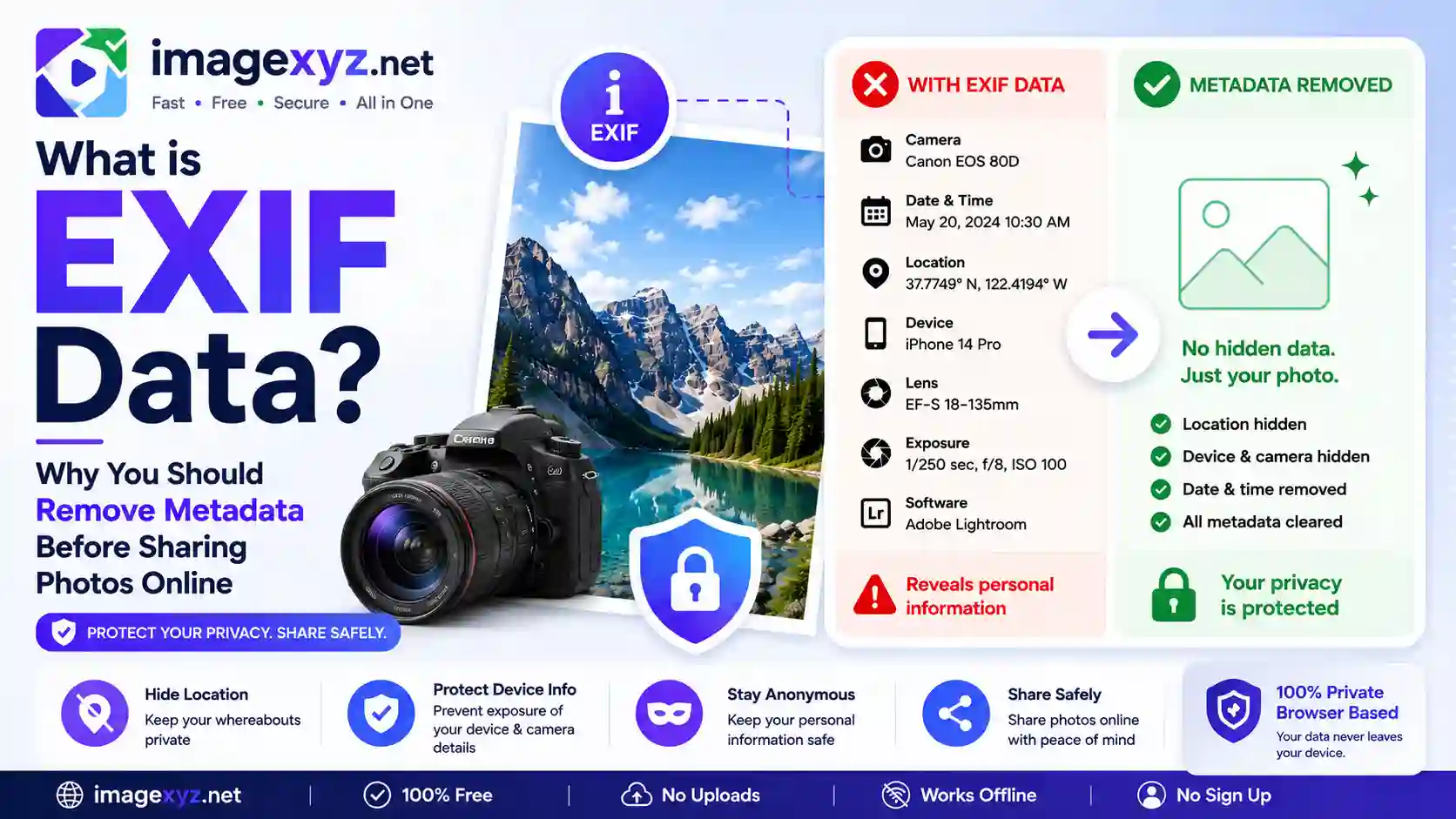
When you capture a photograph using a modern smartphone or digital camera, the resulting file contains much more than just a grid of colored pixels. Tucked inside the file is a hidden digital fingerprint known as EXIF Data. While this metadata is highly useful for cataloging your library, it poses a severe privacy risk. In this comprehensive guide, we will answer the question: What is EXIF Data? Why You Should Remove Metadata Before Sharing Photos Online, showing you how hidden information can compromise your physical security and how to strip these tags locally using ImageXyz's Metadata Remover and inspect them using the Metadata Viewer.
Sharing photos on the internet has become a daily activity. However, many users do not realize that when they upload raw files directly to forums, email threads, or online databases, they are broadcasting their exact physical coordinates, device specifications, and camera details. While some social media networks strip this information, many other sites do not. Operating entirely in your browser sandbox, ImageXyz removes these headers locally on your device without sending any data over the network, providing absolute privacy.
Quick Metadata Removal
If you have sensitive images you need to sanitize immediately, bypass this technical guide and head straight to our client-side utility: the Local Metadata Remover. It strips all EXIF fields in milliseconds inside your local browser memory.
The Anatomy of Image Metadata: Defining EXIF, IPTC, and XMP
Metadata is broadly defined as "data that describes other data." In the context of digital photography, metadata consists of standardized text tags embedded directly inside the image file structure. There are three primary standards used to organize this information:
- EXIF (Exchangeable Image File Format): Created by the Japan Electronic Industries Development Association (JEIDA) in 1995, EXIF is the standard used by digital camera hardware and smartphones. It records settings like aperture, focal length, exposure time, capture dates, and GPS coordinates.
- IPTC (International Press Telecommunications Council): Developed for journalists and news agencies, IPTC metadata is typically added manually after capture. It records captions, copyrights, titles, keywords, and editorial instructions.
- XMP (Extensible Metadata Platform): Introduced by Adobe in 2001, XMP is an XML-based metadata standard that allows editing software (like Photoshop and Lightroom) to save non-destructive edit histories and copyright tags directly within the file container.
What Information is Hidden in Your EXIF Headers?
Every time you press the shutter button, your camera or phone automatically updates the EXIF header. The scope of information recorded is surprisingly detailed:
- Camera Configuration: Camera brand and model (e.g., Apple iPhone 15 Pro, Canon EOS R5), lens model, focal length, ISO speed, aperture value, exposure time, white balance settings, and metering mode.
- Temporal Stamps: The exact date and millisecond timestamp of when the photo was captured, as well as the date the file was last edited.
- Device Configuration: The version of the device operating system (e.g., iOS 17.5, Android 14) and the specific editing application used.
- Embedded Preview Thumbnails: To allow file explorers to load previews quickly without unpacking the full high-resolution image, EXIF headers embed a duplicate, low-resolution JPEG thumbnail.
- Geolocation Data (GPS): If your device has location services active, it records your exact latitude, longitude, altitude, and heading. This is the most sensitive data point, as it can pinpoint your location within a few feet.
The Security & Privacy Risks: Why You Should Remove Metadata Before Sharing Photos Online
Sharing un-sanitized photographs online presents serious privacy and security risks:
1. Geotagging and Stalking
A simple photo of a pet posted on an online forum or sent via email can contain GPS tags pointing directly to your living room. Stalkers or bad actors can extract these coordinates, enter them into a map service, and find your home address, daily routines, or workplace location. This risk is especially high for parents sharing photos of their children or individuals selling items on online classifieds.
2. Social Engineering and Device Profiling
Cybercriminals use metadata to gather information for social engineering campaigns. Knowing your device model, operating system version, and editing software tells a hacker what software bugs your device might be vulnerable to, allowing them to target you with tailored phishing attacks.
3. Theft and Target Selection
Exposing camera settings and camera serial numbers can also make you a target. Professional photographers sharing photos taken with expensive cameras and lenses can inadvertently signal to thieves that they own valuable gear, while geotags can reveal where that gear is stored.
The Storage Bloat: How Hidden Thumbnails and Metadata Increase File Size
Beyond privacy risks, EXIF metadata can cause unexpected storage bloat. While text strings occupy very little data, the embedded JPEG preview thumbnail does.
This thumbnail can easily add 10KB to over 150KB of unnecessary data to your file. If you are uploading documents to official portals with strict size limits (like UPSC or SSC requiring files under 50KB), this metadata bloat makes it much harder to compress the image without destroying pixel quality.
By stripping EXIF metadata, you remove this hidden bloat, leaving your entire file size budget for the image itself. This keeps your photos sharp and clear while speeding up website loading times.
Step-by-Step Guide: How to Remove Metadata Locally Using ImageXyz
Follow this simple client-side process to clean your images and protect your privacy:
Upload Your Original Image
Drag and drop your JPEG or PNG file into the Metadata Remover. The file loads instantly in your browser memory without network uploads.
Inspect the Hidden EXIF Tags
Use our Metadata Viewer to see what metadata is embedded in your file, including GPS tags, device details, and capture timestamps.
Run the local metadata strip pass
Click the "Strip Metadata" button. Our script draws the image onto a local canvas context, which extracts the raw pixels and discards the metadata headers automatically.
Download Your Sanitized Photo
The canvas generates a new, clean image file that is saved directly to your device. You can now share your photo online knowing your privacy is secure.
Save a Personal Copy!
Metadata stripping permanently deletes all camera configurations and capture history. Always keep a backup copy of your original photo if you want to preserve settings or capture dates for your personal library.
Technical Directory of Standard EXIF Tags
Below is a quick reference table of standard EXIF tags that contain sensitive device and location information:
| EXIF Group | Key Tags Included | Data Type | Privacy & Security Risk Level |
|---|---|---|---|
| GPS Data | GPSLatitude, GPSLongitude, GPSAltitude, GPSTimestamp | Floating Coordinates | CRITICAL (Pinpoints exact physical location) |
| Camera Details | Make, Model, LensModel, CameraSerialNumber | Text Strings | MODERATE (Used for device profiling and targeting) |
| Temporal Stamps | DateTimeOriginal, DateTimeDigitized | ISO Timestamp | LOW-MODERATE (Exposes daily schedules and timelines) |
| System Details | Software, OS Version, HostComputer | Text Strings | MODERATE (Exposes software vulnerabilities) |
| Photographic Settings | Aperture, ShutterSpeed, ISO, ExposureBias | Numerical values | LOW (Safe configurations for photographers) |
Alternative Offline & Platform-Specific Metadata Removers
If you need to strip metadata offline or automate the process across multiple files, you can use these operating system tools:
1. Windows File Explorer
Right-click the image, open Properties, and go to the Details tab. At the bottom, click "Remove Properties and Personal Information." You can choose to create a copy with all possible properties removed, or select specific tags to delete. This is a reliable, built-in offline option for Windows users.
2. macOS Finder & Preview
Open the image in Preview, press Cmd + I, and select the Info tab. In the GPS sub-tab, click "Remove Location Info" to strip coordinates. To prevent location tags from being recorded in the first place, disable location access for the Camera app in your system Privacy settings.
3. Command Line Automation (ExifTool)
For developer workflows and batch scripting, Phil Harvey's ExifTool is the gold standard. To strip all metadata from a file, run:
exiftool -all= input.jpg
To delete location data while leaving camera configurations intact, run:
exiftool -gps:all= input.jpg
This command runs locally, making it highly efficient for processing folders containing thousands of files.
Pre-Sharing Privacy Checklist
Before posting or sharing a photo online, run through this quick checklist to protect your privacy:
- Verify the Sharing Platform: Major networks like Instagram strip metadata automatically, but messaging links, email attachments, and online forums often do not.
- Strip Metadata Using ImageXyz: Run your image through the Metadata Remover to strip GPS, device, and temporal tags.
- Descriptive Filename: Rename the file to remove default names that contain dates and times (e.g.
IMG_20260617_1546.jpg). - Review the Background: Zoom in and verify that your photo does not display mail envelopes with addresses, bank statements, or reflection details in mirrors.