 By Rakesh Joshi
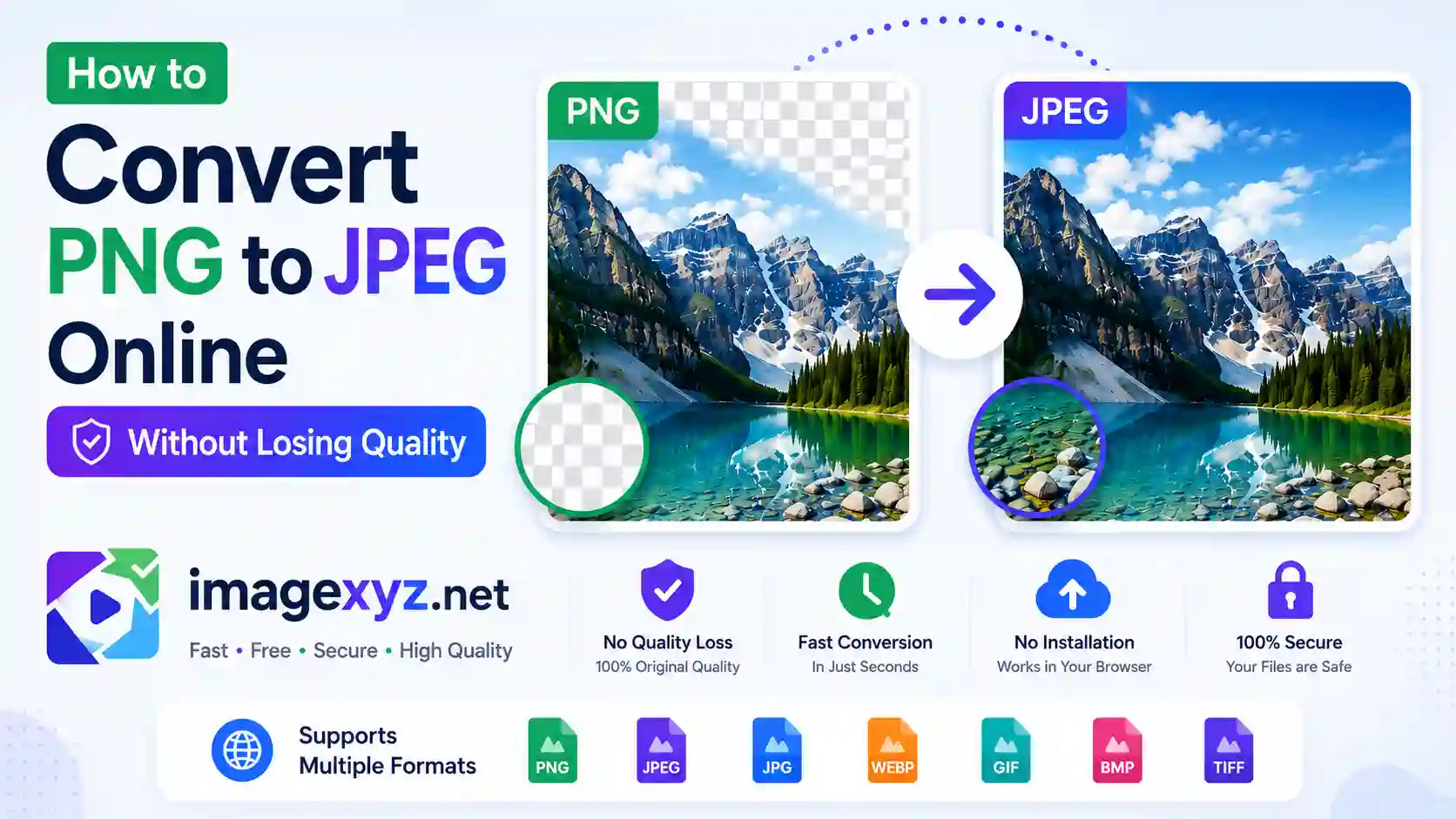
When you need to optimize your digital assets for official portal uploads, speed up layout rendering on a website, or reduce server storage fees, learning how to Convert PNG to JPEG is a vital skill. While PNG files are excellent for maintaining pixel-perfect graphics and transparent backgrounds, their massive storage footprint makes them poorly suited for daily internet uploads. In this comprehensive, technical guide, we will teach you exactly How to Convert PNG to JPEG Online Without Losing Quality, showing you how to handle transparent areas and adjust compression configurations using the client-side utilities at ImageXyz's PNG to JPEG Converter.
Most basic converters on the internet force users to upload their private documents or photos to external cloud servers. This approach exposes you to severe privacy issues and consumes significant upload bandwidth. ImageXyz works entirely inside your browser sandbox. Our scripts leverage local HTML5 canvas drawing contexts and modern browser compilation, meaning your raw photos are processed locally on your machine and never cross the network. This client-side execution makes conversion fast, private, and highly reliable.
Instant Format Conversion
If you have files ready to format and want to skip the technical explanation, jump straight to our client-side utility: the Online PNG to JPEG Converter. It performs local conversions instantly with adjustable quality sliders.
The Technology Behind PNG and JPEG Formats
To understand what happens during a conversion, we must examine the contrasting compression technologies used by PNG and JPEG files. They were built for entirely different visual tasks:
PNG (Portable Network Graphics): The Lossless Standard
PNG is a lossless raster format designed to replace the legacy GIF standard. It utilizes the DEFLATE algorithm, which combines LZ77 sliding window dictionary matching and Huffman coding. Because it is lossless, saving an image as a PNG keeps every pixel mathematically identical to the source graphic. This makes PNG the definitive choice for illustrations, charts, diagrams, screenshots containing text, and branding logos.
More importantly, PNG supports 8-bit alpha transparency. Each pixel in a PNG contains four data channels: Red, Green, Blue, and Alpha (transparency level). This allows objects to have soft, anti-aliased transitions into transparent backdrops, integrating with any web styling.
JPEG/JPG (Joint Photographic Experts Group): The Lossy Standard
JPEG was designed for natural photographs containing millions of colors and smooth gradients. To achieve small file sizes, JPEG uses lossy compression, which permanently discards visual details the human eye is less sensitive to. The compression pipeline is complex:
- Color Space Conversion: RGB pixels are converted to YCbCr (Luminance, Blue Chrominance, and Red Chrominance). Because humans detect changes in brightness much more clearly than color changes, the color channels can be compressed more aggressively.
- Chroma Subsampling: The converter discards color resolution. Common ratios are 4:4:4 (no subsampling), 4:2:2 (moderate color discarding), and 4:2:0 (aggressive color discarding).
- Discrete Cosine Transform (DCT): The image is divided into 8x8 pixel blocks. The DCT converts the pixel grids into spatial frequencies, separating raw shapes from fine-grained details.
- Quantization: This is where quality is lost. High-frequency details are divided by quantization coefficients and rounded to the nearest integer. High compression ratios divide by larger numbers, leading to blocky artifacts and fuzzy text borders.
The Transparency Challenge: Flattening and the Black Background Bug
The most common issue users encounter when converting PNG to JPEG is that transparent backgrounds suddenly turn black. To understand why this happens, we must look at how digital transparency works.
In a transparent PNG, pixels in transparent areas have their Alpha channel set to zero. Because JPEG does not support alpha values, this transparency layer is discarded. If the converter simply strips the alpha values without flattening the image first, the transparent pixels default to binary zero values (Red: 0, Green: 0, Blue: 0), which renders as solid black. This results in unsightly, unusable output images.
To prevent this, our client-side converter applies a process called Alpha Flattening before exporting. The canvas context draws a solid background color (typically pure white) under the transparent PNG. The red, green, and blue values of the semi-transparent pixels are then blended with the background color using alpha composition math:
Output Color = (Foreground Color * Alpha) + (Background Color * (1 - Alpha))
This composition produces clean, anti-aliased edges against a solid white backdrop, eliminating the black background bug completely.
Managing Quality Settings to Prevent Pixelation
When you convert a lossless PNG into a lossy JPEG, some quality loss is inevitable. However, you can manage this transition to prevent visible pixelation. The key tool is the JPEG Quality Slider, which controls the quantization table scaling.
- 100% Quality: The quantization table uses minimal division. File size remains large, and the quality is visually pristine, though not mathematically lossless. Useful only for archival purposes.
- 90% - 95% Quality (Recommended): The sweet spot. This setting achieves a massive file size reduction (often up to 80% smaller than the PNG) while keeping the output visually identical to the original. High-contrast borders and sharp lines remain clean.
- 70% - 80% Quality: Acceptable for standard web images and mobile sites where loading speed is the priority. You may begin to notice slight halo artifacts around text.
- Below 60% Quality: High compression artifacts. The image becomes blocky, colors blur, and edges display severe pixel noise. Avoid this setting unless you have a strict file size limit (such as government portals requiring files under 20KB).
Step-by-Step Guide: How to Convert PNG to JPEG Online Without Quality Loss
Follow this manual workflow to convert your PNG files while maintaining high visual quality:
Upload Your Original Lossless PNG File
Locate the original PNG graphic. Ensure it has not been pre-compressed or sent via messaging apps that apply compression, as these add visual noise that worsens during conversion.
Set the Quality Threshold to 90%
Navigate to the PNG to JPEG Converter. Adjust the quality slider to exactly 90%. This ensures the quantization tables compress the file efficiently without introducing visible blockiness or edge distortion.
Enable Background Flattening (White Fill)
If your source PNG has transparency, verify that the converter is set to apply a white background fill. Our browser-based tool does this by default, ensuring your transparent backgrounds convert cleanly without turning black.
Download Your Converted JPEG File
Click convert. The underlying JavaScript reads the pixel data from an offscreen canvas context, translates it to JPEG format in-memory, and triggers a local download link. Your data remains completely private on your device.
Watch Out for Blurry Text!
If you are converting a PNG that contains fine text (like a screenshot of a document or a spreadsheet), JPEG compression will introduce fuzzy artifacts around the lettering. To preserve text readability, keep the quality slider at 95% or higher, or keep the image in PNG or WebP format.
Technical Comparison: PNG vs. JPEG
Refer to this technical table to compare the specifications of PNG and JPEG before converting:
| Technical Attribute | PNG (Portable Network Graphics) | JPEG (Joint Photographic Experts Group) |
|---|---|---|
| Compression Type | Lossless (Deflate) | Lossy (DCT + Quantization) |
| Transparency Support | Yes (8-bit alpha channel) | No (flat raster grid) |
| Color Space Support | RGB (sRGB, Grayscale) | RGB, YCbCr, CMYK (for print) |
| Color Depth | 8-bit, 24-bit, up to 48-bit color | 8-bit per channel (24-bit total color) |
| Ideal for | Logos, screenshots, graphics with sharp text | Natural photos, continuous-tone portraits |
| File Size Profile | Large (retains all pixel data) | Small (optimized via compression) |
Alternative Offline & Advanced Conversion Methods
If you need to convert files offline or want to script bulk conversions, several professional alternatives are available:
1. Adobe Photoshop (Professional Control)
Open your PNG in Photoshop and navigate to File > Export > Export As.... Select JPEG from the format dropdown. This interface lets you select the output quality and color profile (convert to sRGB for web use).
Photoshop handles transparent backgrounds automatically by rendering them over a solid color. You can configure this color using the "Matte" dropdown in the sidebar to match the background color of your website.
2. Operating System Built-in Tools (Paint & Preview)
You can convert files without installing third-party software using built-in OS tools:
- Windows Paint: Open the PNG in Paint, click the File menu, hover over "Save as," and select "JPEG picture." Paint flattens the transparent background to pure white automatically.
- macOS Preview: Open your PNG, click
File > Export..., and choose JPEG from the format list. You can adjust the quality slider to find the right balance between file size and visual clarity.
3. Command Line Automation (ImageMagick)
For developer workflows and batch scripting, the command-line tool ImageMagick is highly recommended. To convert a transparent PNG to JPEG with a white background and 90% quality, run:
magick input.png -background white -flatten -quality 90 output.jpg
This command flattens the transparency layer to white first, preventing the black background bug, and then applies the JPEG compression pipeline.
Pre-Upload SEO & Performance Optimization Checklist
Before uploading your converted JPEG to a website or portal, verify these settings to ensure best results:
- Optimize the Filename: Use lowercase, descriptive filenames separated by hyphens (e.g.
passport-photo-conversion.jpg) instead of default names (e.g.image.png). This improves search engine indexing. - Verify Dimensions: Ensure the pixel width matches the target container. Never upload a 4000px wide image to fill a web container that is only 800px wide. Downscaling the dimensions reduces file size with no loss in visual clarity.
- Check the Aspect Ratio: If uploading to an official portal with strict rules (e.g. UPSC, SSC), verify that your cropped JPEG matches their required aspect ratios (like 3.5 x 4.5 cm) before uploading.
- Strip Metadata for Web Privacy: JPEG files store camera settings and GPS locations (EXIF data). Strip this metadata when exporting for web pages to protect your privacy and reduce file sizes. Our converter does this automatically.