 By Rakesh Joshi
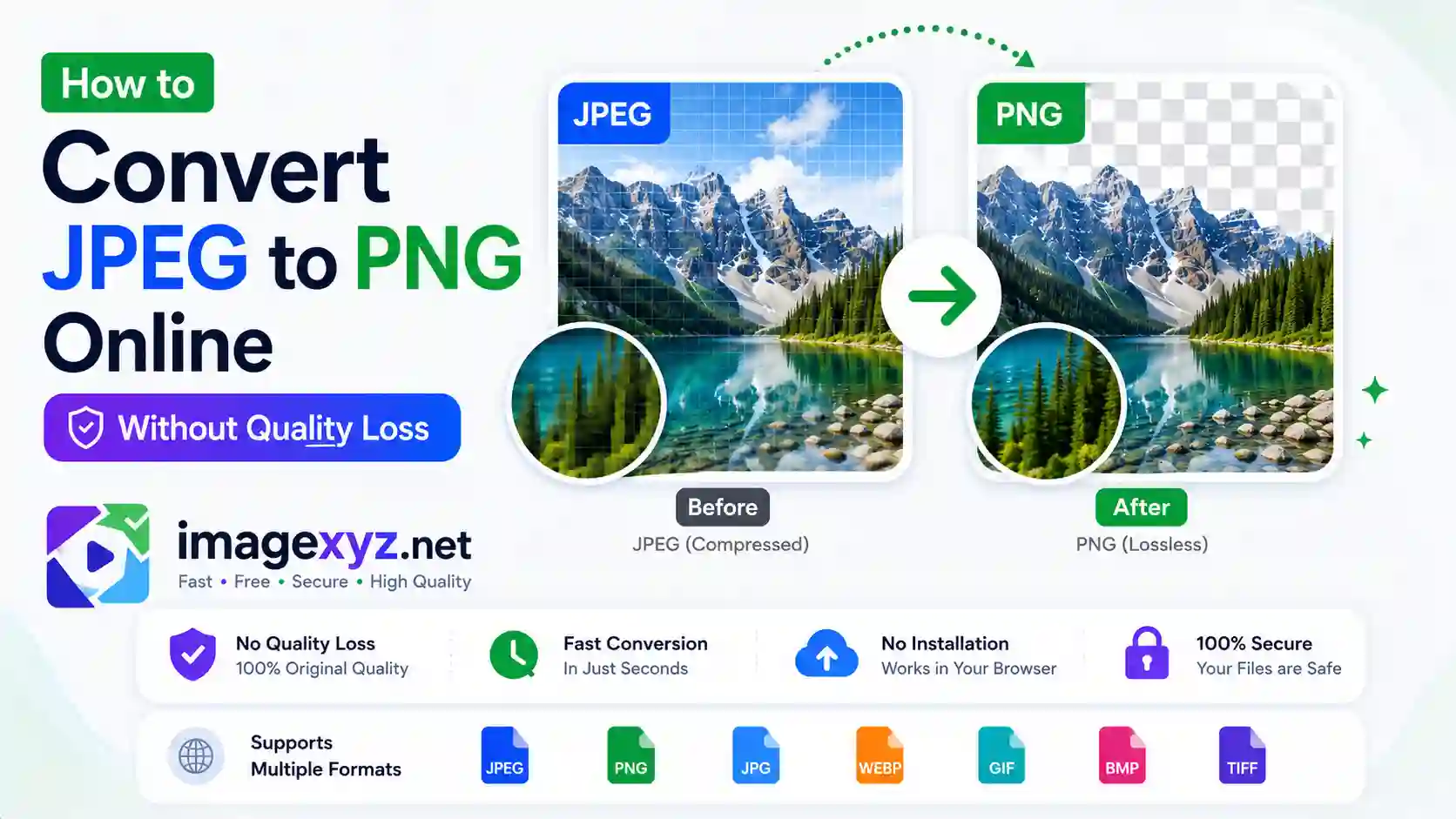
When working on graphics design, building digital interfaces, or preparing assets for high-fidelity vector editing, knowing when and how to Convert JPEG to PNG is an essential technical requirement. While JPEG format is widely compatible and light, its lossy compression algorithm introduces visual noise and discards transparency data. In this comprehensive guide, we will break down the mechanics of digital compression and outline exactly How to Convert JPEG to PNG Online Without Quality Loss using the local client-side tools at ImageXyz's JPEG to PNG Converter.
Most online file conversion websites force you to upload your personal photos to remote cloud servers. This traditional workflow presents severe security risks and wastes valuable bandwidth. ImageXyz is designed to prioritize your privacy. All processing runs locally inside your browser sandbox using HTML5 canvas elements and local JavaScript engines. Because no files are uploaded to the internet, your documents remain completely confidential, and the conversion is completed instantly.
Secure Browser Conversion
If you need to change your image formats immediately without reading the full technical guide, jump straight to our client-side utility: the Online JPEG to PNG Converter. It converts your images in-memory in milliseconds.
The Technical Science: Lossy vs. Lossless Formats
To perform format changes without degrading your graphics, you must understand the math separating lossy JPEG and lossless PNG structures:
JPEG: Lossy Compression and Discarded Detail
JPEG is designed for photographic content with soft color gradients. It uses a lossy algorithm to discard color details that are less detectable by human eyes. The process converts images from RGB to YCbCr, applies Discrete Cosine Transform (DCT) to group pixels in 8x8 blocks, and rounds values during a quantization pass. Quantization permanently throws away high-frequency data, creating blocky noise around sharp contrast borders (like text lines or logo paths).
Once detail is discarded during JPEG compression, it is gone forever. Re-saving a JPEG or converting it to another format does not restore this lost data.
PNG: Lossless DEFLATE Preservation
PNG is a lossless format developed to replace the legacy GIF standard. It utilizes a compression pipeline based on the DEFLATE algorithm, combining LZ77 dictionary matching and Huffman encoding.
Because it is lossless, saving a graphic as a PNG preserves every color value with mathematical perfection. PNG supports 8-bit alpha channels, allowing pixels to transition from fully opaque to fully transparent. This transparency support is crucial for modern logo design and web layout overlays.
The Common Misconception: Quality Restoration
A frequent error among web developers and designers is the belief that converting a low-quality JPEG to PNG will magically restore lost visual detail.
This is mathematically impossible. The target PNG container only copies the existing pixels (along with any blocky JPEG compression artifacts) and preserves them losslessly. Instead of fixing the image, this conversion locks the artifacts in place and increases the file size significantly.
To convert JPEG to PNG without quality loss, you must start with the highest quality JPEG source available. Avoid double-compressing images that have already been shared over social media platforms, as they have already undergone heavy visual degradation.
Background Extraction: Creating Transparency from a JPEG
Since JPEG does not support transparency, any white or solid backdrop (such as the border of a scanned logo) must be removed during conversion to PNG.
Our client-side tool allows you to isolate solid backgrounds and generate transparent alpha channels. The JavaScript reads the canvas pixel grid via `getImageData`, scans the RGBA arrays, and checks if a pixel's color matches your target background color (within a defined tolerance threshold). If it matches, the alpha channel for that pixel is set to zero, making it transparent.
This allows you to extract logos and illustrations from solid JPEG backgrounds and convert them into clean transparent PNGs for web layout overlays.
Step-by-Step Guide: How to Convert JPEG to PNG Online Without Quality Loss
Follow this optimal workflow to convert your images while maintaining maximum quality:
Select the Highest Quality JPEG Source
Begin with the original camera export or high-resolution graphic. Starting with a low-compression JPEG ensures the final PNG contains minimal noise and compression artifacts.
Upload to Our Secure Local Converter
Open the JPEG to PNG Converter. Drag and drop your JPEG. The file loads instantly in your browser memory without uploading to any remote server.
Configure Background Removal (Optional)
If your JPEG contains a solid background you want to remove, select the background color (usually white) and set the tolerance slider. The canvas script will transparentize those pixels automatically.
Download Your Lossless PNG
Trigger the conversion. The canvas script compiles the pixel values into a PNG-24 container and generates a local download link in milliseconds.
Watch Out for Bloated Files!
Because PNG compression is lossless, converting large photographs (like landscapes) from JPEG to PNG can increase the file size by up to 500% without adding any detail. Only convert to PNG when you need transparency, sharp text borders, or lossless archiving.
Technical Spec Sheet: JPEG vs. PNG
Refer to this comparative table to analyze the specifications of both formats before starting your conversion:
| Technical Feature | JPEG (Joint Photographic Experts Group) | PNG (Portable Network Graphics) |
|---|---|---|
| Compression Model | Lossy (DCT + Quantization) | Lossless (DEFLATE / LZ77) |
| Transparency Support | No (solid background required) | Yes (8-bit alpha channels) |
| Web Suitability | Excellent for photos (small sizes) | Excellent for UI graphics and logos |
| Color Space | RGB, YCbCr, CMYK (print-ready) | RGB, Indexed Color, Grayscale |
| Edits & Re-saves | Degrades quality with each save | Retains quality perfectly after editing |
| Typical File Sizes | Highly compressed (Small) | Uncompressed grid (Large) |
Alternative Offline & Desktop Conversion Methods
If you prefer converting files offline or need to script bulk operations, you can use these professional desktop utilities:
1. Adobe Photoshop (Professional Export)
Open your JPEG in Photoshop and navigate to File > Export > Export As.... Select PNG from the format menu. If you need transparency, you can use the magic wand tool to select and delete solid background areas before exporting.
Make sure to check the "sRGB" color profile option to ensure consistent color rendering across all web browsers.
2. Operating System Built-in Tools (Paint & Preview)
You can convert formats without installing third-party applications using your OS built-in tools:
- Windows MS Paint: Open your JPEG, click on File, hover over "Save as," and select "PNG picture." This saves a flat PNG. Paint does not support transparency extraction.
- macOS Preview: Open your JPEG, click
File > Export..., and choose PNG from the format menu. If you hold down theOptionkey, you will unlock extra options like color depth configuration.
3. Command Line Automation (ImageMagick)
For developer scripts and batch automation, ImageMagick is the gold standard. To convert a JPEG to a standard PNG, run:
magick input.jpg output.png
If you want to transparentize a white background during conversion, use the transparent flag:
magick input.jpg -transparent white output.png
This command runs locally, making it highly efficient for processing folders containing thousands of files.
Pre-Upload SEO and Layout Checklist
Run through this quick checklist before uploading your converted PNG to your website:
- Descriptive Filenames: Rename files using lowercase letters and hyphens (e.g.
transparent-logo-conversion.png) to improve search engine indexing. - Optimize Dimension Scaling: Never upload a 4000px wide PNG to display in an 800px container. Resize the image width to match the layout container before converting to prevent page load delays.
- Strip Metadata for Web Use: Stripping camera EXIF metadata reduces file sizes and protects your privacy. Our client-side converter strips metadata automatically during export.
- Check Color Space Settings: Ensure the color space is set to sRGB to prevent shifts when rendering in different web browsers.