 By Rakesh Joshi
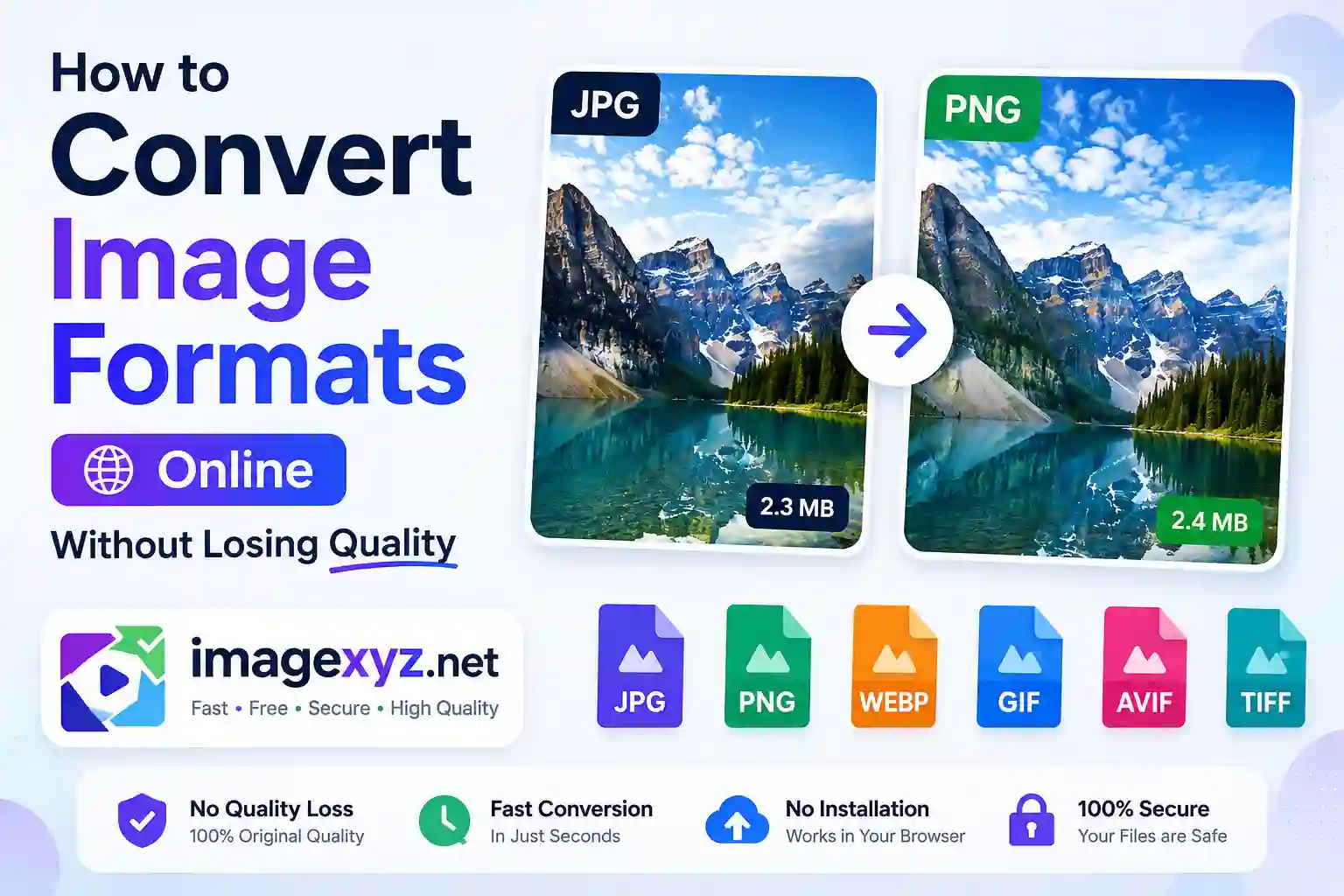
Finding a reliable, high-performance Image Converter that lets you convert image formats online without losing quality is a fundamental requirement for web designers, photographers, developers, and regular internet users alike. Whether you are submitting a passport photo for a government application, compressing website banners to score a perfect Core Web Vitals speed grade, or translating vectors for branding projects, the choice of your format and converter configuration will directly determine the outcome. In this detailed guide, we will explore the science of image encoding, analyze the trade-offs between lossy and lossless algorithms, and walk step-by-step through the process of using client-side tools like the ImageXyz Image Converter to convert images securely right inside your browser.
A major roadblock when trying to convert image formats online is that most standard converters require you to upload your sensitive photographs to external, remote servers. This structure poses severe privacy risks and consumes significant network bandwidth. Local browser-based conversion, by contrast, operates entirely in-memory using HTML5 Canvas APIs, WebAssembly, and local JavaScript libraries. By running these tasks locally, your original images never cross the network, guaranteeing total confidentiality while allowing you to convert hundreds of files offline in fractions of a second.
Fast Browser Processing
If you have urgent files that need formatting, you can bypass the technical theory and head directly to our main client-side utility: the Online Image Converter. This program processes conversions instantly in your browser sandbox without server queues.
Raster vs. Vector: The Technical Foundation of Digital Imagery
To understand why quality is sometimes lost during conversion, you must first recognize the division between the two main types of digital graphics: raster images and vector graphics. Raster images (such as JPEGs, PNGs, and WebPs) are built from a rigid grid of individual colored blocks called pixels. The quality of a raster image is directly bound to its resolution: the total count of columns and rows of pixels. If you scale a raster file upward, the computer is forced to interpolate or "invent" new pixels, resulting in blurry, pixelated edges.
Vector graphics (such as SVGs and EPS files) are fundamentally different. They do not contain pixels. Instead, they are defined by mathematical formulas that represent lines, curves, circles, polygons, and color fills in coordinate space. Because vectors are based on geometry, they can be scaled infinitely - from the size of a tiny favicon to a massive highway billboard - without losing a single pixel of clarity. Converting a vector (SVG) to a raster format (like PNG or JPEG) is called rasterization. This process is straightforward because the computer simply renders the math formulas onto a pixel grid. However, converting a raster image back into a vector (vectorization or tracing) is incredibly difficult, often producing imperfect, abstract shapes because the computer has to reconstruct mathematical curves from grids of colors.
Breaking Down Core Image Formats and Their Compression Systems
Each image format is designed to solve a specific problem. Understanding these designs allows you to make informed decisions about which format to choose when using an online Image Converter.
1. JPEG/JPG (Joint Photographic Experts Group)
JPEG is the most widely compatible image format in the world. Engineered specifically for complex, continuous-tone photographs containing smooth gradients and real-world lighting, JPEG utilizes a lossy compression algorithm. The compression process breaks the image into 8x8 pixel blocks and applies a mathematical formula called the Discrete Cosine Transform (DCT). High-frequency detail - information that the human eye is less sensitive to - is discarded to reduce file size.
While JPEG is incredibly efficient at saving disk space, it has two major limitations: it does not support transparent backgrounds (alpha channels), and every time you edit and re-save a JPEG, it undergoes generational quality loss, creating blocky compression artifacts.
2. PNG (Portable Network Graphics)
PNG was created as a modern, license-free alternative to GIF. It uses a lossless compression scheme based on the DEFLATE algorithm (similar to ZIP compression). Because it is lossless, saving a PNG retains every single pixel of the original graphic with mathematical perfection. This makes PNG the ideal format for line art, screenshots, graphics with sharp text, and logos.
Furthermore, PNG supports full 8-bit alpha transparency, allowing smooth, anti-aliased transitions between transparent areas and background elements. The downside to PNG is its file size: because it does not discard any pixel data, photographic PNG files are often five to ten times larger than JPEGs, making them poorly suited for loading speeds on high-traffic websites.
3. WebP (Google Next-Gen Web Format)
WebP is a modern image format developed by Google specifically to optimize web performance. It is a highly versatile format, supporting both lossy and lossless compression, transparency, and even basic animations. WebP's lossy compression is based on keyframe prediction technology derived from the VP8 video codec. It analyzes adjacent pixel blocks to predict values, encoding only the difference between the prediction and the actual image.
As a result, lossy WebP files are roughly 25% to 35% smaller than comparable JPEGs at identical quality levels. Lossless WebP files are also about 26% smaller than standard PNGs while maintaining pixel-perfect transparency. Today, WebP is supported by all major modern web browsers, making it the definitive choice for web-based optimization.
4. SVG (Scalable Vector Graphics)
SVG is an XML-based vector format designed for the web. Because SVGs are written in raw code, they are incredibly lightweight and can be styled dynamically using CSS or animated with JavaScript. SVGs are perfect for icons, UI controls, illustrations, and logos. Because they are code-based, they are also highly accessible and SEO-friendly, as search engines can crawl and read the text strings embedded inside the graphic. When you run an SVG through a converter, you are converting vector coordinates into static pixels.
5. TIFF (Tagged Image File Format)
TIFF is the standard format for commercial print, desktop publishing, and archiving. It supports uncompressed or lossless LZW/ZIP compression, preserving maximum color fidelity. TIFF supports multiple color profiles, including CMYK (Cyan, Magenta, Yellow, Key Black) which is required for physical ink printing presses. While TIFF is the gold standard for preserving master-quality photos, the file sizes are massive, and the format is not supported by standard web browsers for native page rendering.
Lossy vs. Lossless: The Rules of Quality Preservation
When you convert image formats online, the relationship between the source and target formats determines whether the image loses quality. The rules of digital preservation are simple:
- Lossless to Lossless (e.g., PNG to Lossless WebP): The quality is preserved 100%. No data is discarded. The file size changes due to the efficiency of the underlying algorithms, but the pixels remain identical.
- Lossless to Lossy (e.g., PNG to JPEG): Some quality is discarded. The converter calculates quantization matrices to throw away subtle details. To prevent visible degradation, you must adjust the output quality slider (usually between 85% and 95%).
- Lossy to Lossless (e.g., JPEG to PNG): No quality is restored. This is a common mistake. Converting a lossy JPEG to a lossless PNG will not magically restore the details discarded during the initial JPEG compression. Instead, it simply encodes the existing JPEG compression artifacts into a much larger PNG file, resulting in a bloated, low-quality output.
- Lossy to Lossy (e.g., JPEG to WebP): Generational loss occurs. The converter has to re-compress already compressed pixels. To mitigate this, ensure the source image is as high-quality as possible, and set the target quality settings higher than the source file's estimated quality.
Step-by-Step: How to Convert Image Formats Without Losing Quality
Follow this professional workflow to convert your images, keeping quality high and file sizes lean:
Upload Your Original Source File
Locate the highest resolution version of your image. If you have the raw photograph or a lossless PNG export, always start with that. Avoid using source files that have already been heavily compressed or downloaded from messaging apps, as they contain compression noise that worsens during conversion.
Select the Right Target Format
Evaluate where the image will be used. If it is going on a website, select WebP to maximize page speed. If it is a photo for an official portal that doesn't support WebP, select JPEG. If the image is a logo, transparent graphic, or icon, select PNG. Navigate to the format selection inside the Image Converter tool.
Adjust Quality and Dimension Settings
If converting to JPEG or WebP, do not leave the quality setting at 100%. A quality level of 85% to 92% reduces file size by up to 70% while remaining visually indistinguishable from the original. Additionally, if the image's pixel dimensions are unnecessarily large (e.g., a 4000px smartphone photo going onto a web container that is only 800px wide), downscale the dimensions to match. This saves massive amounts of data with no visible loss in the rendering space.
Run the Client-Side Conversion and Save
Trigger the conversion. The script uses an offscreen HTML5 canvas to read the raw image data, applies the chosen compression parameters, and generates a data URL. You can then download the resulting file locally, knowing your privacy is completely secure since no data was sent to a server.
Beware of Transparency Loss!
If you upload a PNG logo with a transparent background and convert it to JPEG, the transparency channel (alpha layer) will be permanently lost. The transparent background will be filled with white. If you need transparency on the web, always choose WebP or PNG as your output format.
Comparative Analysis of Major Image Formats
Before converting, refer to this detailed table to compare format compatibilities and capabilities:
| Format | Compression Type | Transparency Support | Web Compatibility | Ideal Use Case |
|---|---|---|---|---|
| JPEG / JPG | Lossy | No | Universal (100%) | Digital photos, printing complex portraits |
| PNG | Lossless | Yes (8-bit alpha) | Universal (100%) | Logos, screenshots, graphics with sharp text |
| WebP | Lossy & Lossless | Yes | Modern Browsers (99%+) | Website optimization, loading speed, blog layouts |
| SVG | Vector (XML Code) | Yes | Universal (100%) | Icons, web illustrations, responsive branding |
| TIFF | Lossless or None | Yes | No (requires plugin/viewer) | Professional photography archiving, high-end printing |
Alternative Desktop & Command Line Conversion Methods
If you prefer to convert your files offline or integrate conversion tasks into an automated software workflow, there are several powerful desktop programs available:
1. Adobe Photoshop (Professional Exporting)
For designers, Adobe Photoshop remains the premier choice. Open your file and go to File > Export > Export As... (or use the legacy Save for Web utility via Ctrl + Shift + Alt + S). This interface allows you to choose your format, modify pixel dimensions, adjust compression levels, and choose color profiles (like converting CMYK files back to web-safe sRGB). The live preview window calculates the estimated file size, allowing you to fine-tune quality parameters prior to saving.
2. Operating System Built-in Utilities (MS Paint & macOS Preview)
For simple conversions without third-party software, you can use built-in system tools:
- Windows MS Paint: Open the image in Paint, click on the File menu, hover over "Save as," and select your desired format (PNG, JPEG, BMP, or GIF). While Paint does not provide quality customization, it is quick and requires no internet.
- macOS Preview: Open the image, click on
File > Export..., and choose your format from the format dropdown. If you hold down theOptionkey when clicking the dropdown, you will unlock additional advanced formats like TIFF and OpenEXR. You can also adjust the quality slider for lossy exports.
3. Command Line Automation (ImageMagick)
For system administrators, developers, and power users, the command-line utility ImageMagick is unmatched. It allows you to script bulk conversions across thousands of files. After installing ImageMagick, you can convert a file by running:
magick input.png -quality 85 output.jpg
To convert all PNG files in a folder to WebP in a single command, you can use:
magick mogrify -format webp *.png
This command processes files locally in parallel, conserving system memory and producing clean, optimized outputs.
Pre-Conversion Checklist for Best SEO and Print Results
To ensure your converted files perform perfectly on the web or in print, run through this quick checklist before exporting:
- Check the Color Space: Web browsers display images using the sRGB color space. If you are converting images for a website, ensure they are converted to sRGB. If you are sending them to a printing press, verify they use the CMYK color space.
- Optimize the File Name: Use descriptive, lowercase names separated by hyphens (e.g.,
online-image-converter-guide.webp) rather than generic camera names (e.g.,IMG_9482.jpg). This helps search engines index your image content. - Verify Dimensions: Never upload raw camera dimensions (e.g. 5000px width) directly to web containers. Resize the image width to match the maximum width of the layout container (usually between 800px and 1200px for blog articles).
- Strip Metadata for Web Privacy: Camera metadata increases file sizes and exposes private details. Strip this metadata when exporting for websites. Keep it intact if archiving professional photographs.